
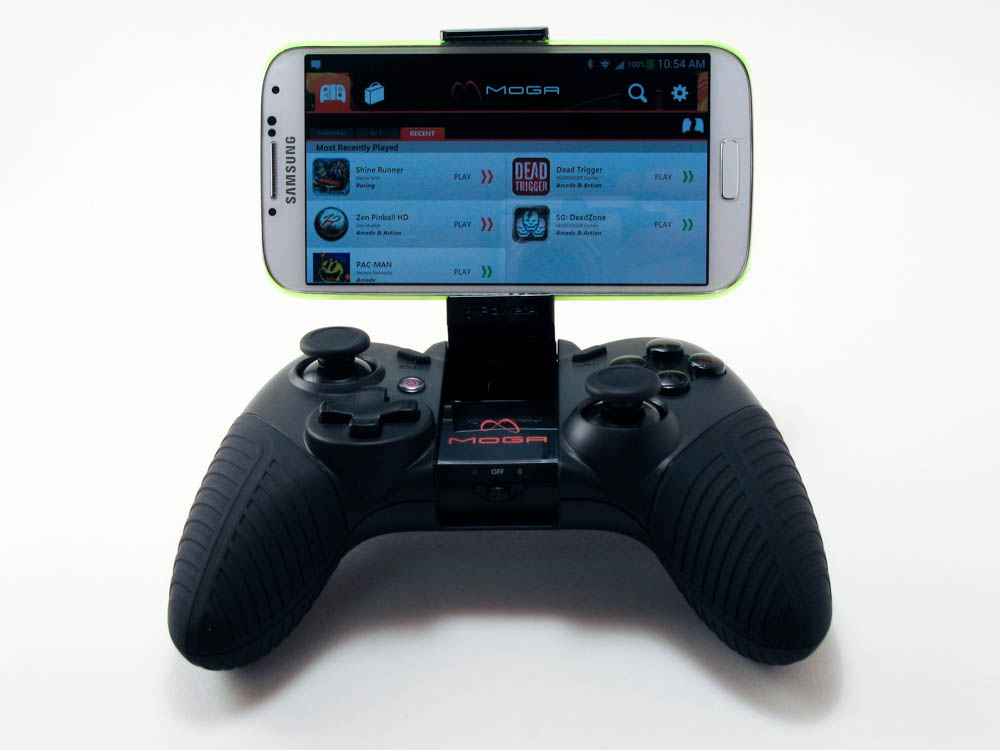
Mobile gaming is huge right now due to the fact that there are tons of people out there with smartphones and pretty much everyone of them who own one have played some form of mobile game whether it be a casual puzzle game or a hardcore first person shooter. There are a ton of gaming options available to all with every kind of genre imaginable so it’s no surprise that there would be companies out there who want to make mobile gaming easier. One of the biggest complaints with mobile gaming on a device with only a touchscreen that you use as controls is that the limited physical feedback you get from it can make certain games difficult to play. Also the fact that by integrating the controls as part of the screen, you also end up covering up a good portion of the screen as well. Well, Power A has a solution to both these problems and it’s in the form of their MOGA Pro Controller for Android based mobile devices.
The MOGA Pro is a controller add-on that features a layout similar to that of an Xbox 360 controller and even includes shoulder buttons. That means you can game on your android based smartphone like one of the pros and enhance gaming far past the limits of what your touchscreen only controls could do.
For this review, the MOGA Pro was tested using a Samsung Galaxy S4 with Sprint as the carrier. The MOGA Pro was provided by PowerA and MOGA.
Design and Build
 The first thing you’ll notice about the MOGA Pro Controller is how similar it looks to an Xbox 360 controller. In fact, the layout is near identical except for a couple of buttons here and there. This is a good thing as the Xbox 360 controller is one of the best designed controllers out there and by far one of the most comfortable. The MOGA Pro is a tiny bit wider though but that’s mainly in order to accommodate that center bracket, which I’ll talk about in a bit.
The entire controller is made from plastic and feels pretty light. It’s not as heavy or solid feeling as the Xbox 360 controller but overall, it doesn’t feel bad and feels pretty sturdy. Most of the controller is in a matte black while the palm grips are shroud in rubber for extra grip and comfort.
The ABXY buttons are shiny black with orange lettering that light up when you press the illumination button on the rear of the controller. The control sticks on the MOGA Pro feel nice and stiff with good bounce back and I like the fact that the thumb grips are recessed for better control. The directional pad is of the + shaped variety and also feels nice and sturdy with a good click feel to them. The 4 shoulder buttons up top are also fairly nice and offer good resistance.
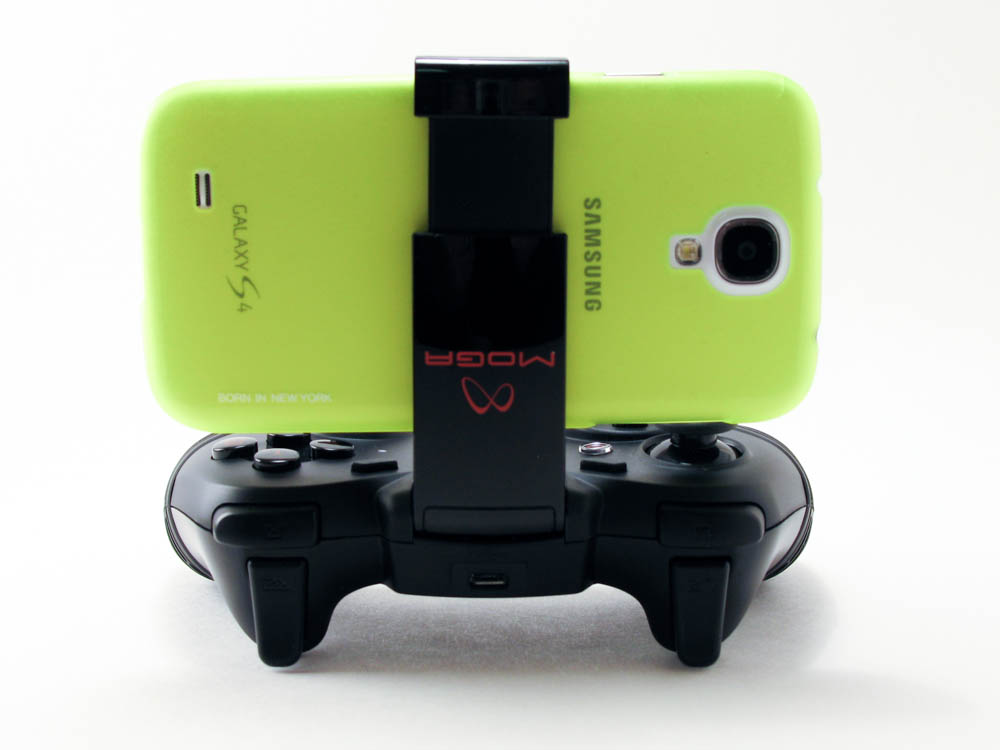
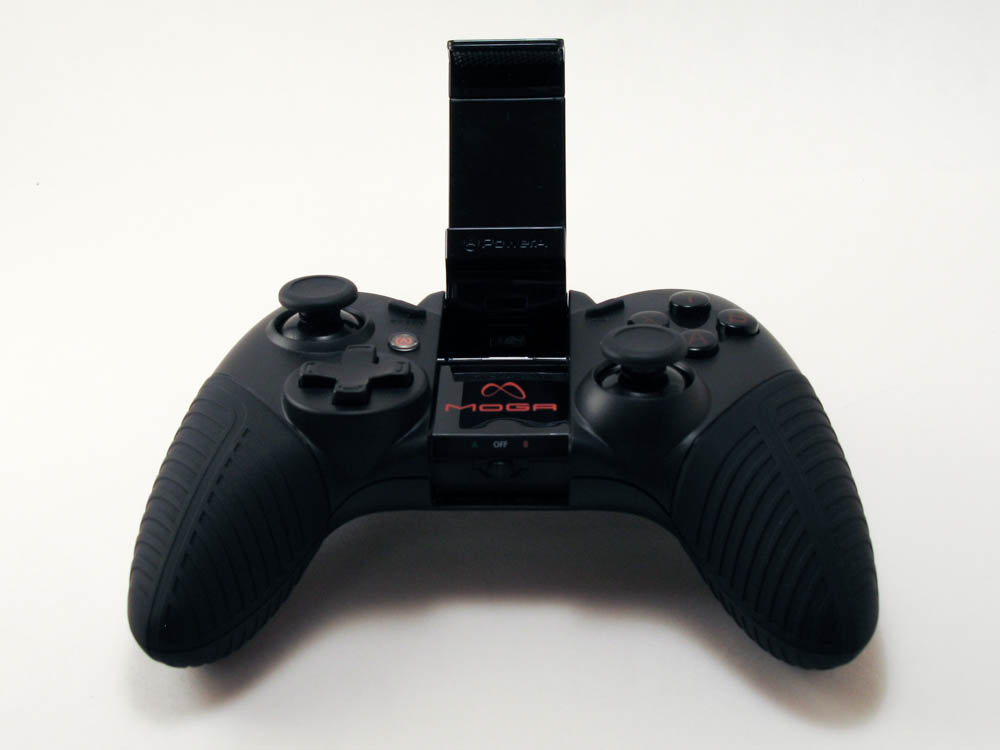 At the center of the controller face, you’ll find the bracket (MOGA Arm) that is used to attach your Android based device to the controller. All you do is flip this portion up and out. The bracket has a spring mechanism on it that allows you to extend it outwards to accommodate devices 3.2-inches in width. I used the MOGA PRo with my Samsung Galaxy S4 with no problems at all despite the large 5-inch screen on it. It with the device quite easily with tons of room to spare for an even larger device. Now, the bracket is too made out of plastic so you will have to be careful with it. It’s strong but there is still a possibility that you can break it if you over extend it.
When you flip up the bracket, you’ll also find the power switch hidden underneath with two modes, A and B. You will have to switch between A or B depending on the game you are playing. Some games work with the A switch while others only function with the B switch. You’ll figure out which to use when you install the MOGA Pivot app to your Android device.
The entire MOGA Pro is rechargeable so there no need to use your own batteries. To recharge your unit, you just need to use the included micro-USB cable that gets plugged into your controller and then plugged into a power source.
Features
- Clickable dual analog sticks, shoulder buttons and triggers, D-pad, and four action buttons offer the control you need for the games you want
- Wireless Bluetooth connection that works with Android tablets and phones.
- The MOGA Arm™ secures phones up to 3.2 in./82mm, the largest phones in the market
- Full-sized, rubberized grips minimize wrist fatigue during mobile gaming sessions
- Internal, rechargeable batteries with a USB recharging cable
- Folding tablet stand
- Huge game library with more titles coming all the time
- Works with Bluetooth-enabled Android 2.3+ smartphones and tablets
Usage
 In order to properly use the MOGA Pro, you will need to head over to Google Play and download the MOGA Pivot app. The MOGA Pivot app acts as a catalog and is your gateway to all games that function with the MOGA Pro and will also let you know which way to set your controller, either A or B. I downloaded this to my Samsung Galaxy S4 and had no problems with installation. It fully recognized use of the MOGA Pro in either A or B mode and from the couple of weeks I’ve been using it, I’ve had no problems with it all.
When you purchase the MOGA Pro, you are given the option of downloading two games that are included with your purchase. You get Namco’s Pac-Man and NOVA 3 from Gameloft. For me, Pac-Man installed without a hitch but for NOVA 3, for some reason it would not install on my Galaxy S4 from the Gameloft website because the device didn’t seem to be supported by the game, which I found quite odd considering it says it is compatible in Google Play. Nevertheless, that’s something that Gameloft has to fix with their game. That means that if you own a Galaxy S4, you won’t be able to download this to play, at least not at this moment.
 Through the MOGA Pivot app, I was able to test out a few games in both A and B modes. I’m assuming A is for “pro” gaming as most of the A games I’ve downloaded make full use of the controller. That includes games like ShadowGun and Blitz Brigade. With B games, I tried out Zen Pinball and Shine Runner. These too also worked pretty well although Shine Runner did not make full use of the MOGA Pro in the entire game and mainly only used it to control the actual game. Menu items still needed touch inputs.
Other than that, the MOGA Pro ran pretty smoothly and I didn’t encounter any problems with it that I could find. Actually, the only problem is that the MOGA Pivot app does seem to be a bit out of date when it comes to MOGA enhanced games showing up in its catalog as I have already encountered a few games in Google Play that do work with the MOGA Pro but weren’t in the Pivot app. Because of hat, I would honestly just test the MOGA Pro out with every game you have just to see if it works and remember that if doesn’t work with one mode, try to see if it works with the other. Most of the games I tried it with that are supported worked pretty well and being able to see the entire screen while playing is a huge plus. I also find it a bit more accurate than using the touch screen, especially for games like first person shooters and racing games.
Final Thoughts
I really enjoyed using the MOGA Pro. Yes, you lose some portability by having to carry around an extra controller but you’ll find that gaming does end up being better, especially with games that are completely supported by it. With that sad, it would have been nice if all games would be supported by it, but that’s just not the case right now. What’s good though is that it does seem like more and more games are supporting it so hopefully if your favorite games don’t support it now, they will later down the line.
Shop Link


Please Support TheGamerWithKids
I love to bring you guys the latest and greatest reviews whether it be apps or gadgets. However, I can’t keep doing that unless we have your continued support. If you would like to purchase any of the items mentioned on the site, please do so by clicking our links to Amazon first and then purchasing the items. This way, we get a small portion of the sale and this helps me run the website.
 The Gamer With Kids