
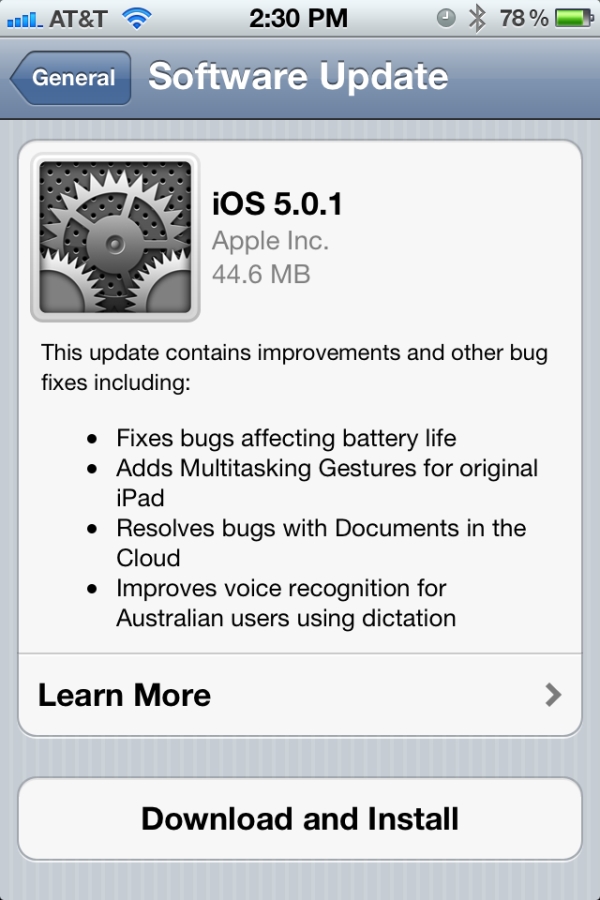
 This is actually going to be a very simple tutorial. It only takes a few steps to complete the process and it’s much faster than trying to update your iOS device using iTunes. The OTA (over the air) update files are much smaller so you’ll be saving a lot of time.
First of all, your iOS device is not going to tell you there is an update. You soft of just need to know there is one, like right now. As I’m writing this, there is a new update, iOS 5.0.1 out and it’s the first to make use of OTA updates. As opposed to the 700mb+ file you’d need to download from iTunes, this one was only about 45mb.
To reach the settings for OTA software update, just head to your Settings App > General Tab > Software Updates. From there, press the Software Update button where it’ll verify if you have an update of not available. If you do, your device will download the update for you and then install it. (With your permission of course). That’s it. Done.
The whole process for me only tool about 10 minutes as times will vary depending on the speed of your internet connection. Enjoy your new update!
 The Gamer With Kids