
If you use OBS Studio or some other app to record your gameplay while also chatting on Discord, you may have discovered that you can’t exactly separate the Discord audio from your gameplay audio. That’s because, by default, they’re all using the same channel. The only way to fix this is by using a third-party app that can separate those audio sources from each other. I did a tutorial last year where we used VB-Audio VoiceMeeter Banana for that. If you’re using a SteelSeries headset, there’s an even simpler solution using the SteelSeries GG software and Sonar.

First up, you’ll need to set up your SteelSeries GG software with Sonar. If you go to settings in the SteelSeries GG app, head to the General section and there you’ll see a toggle to Activate or Deactivate Sonar application.
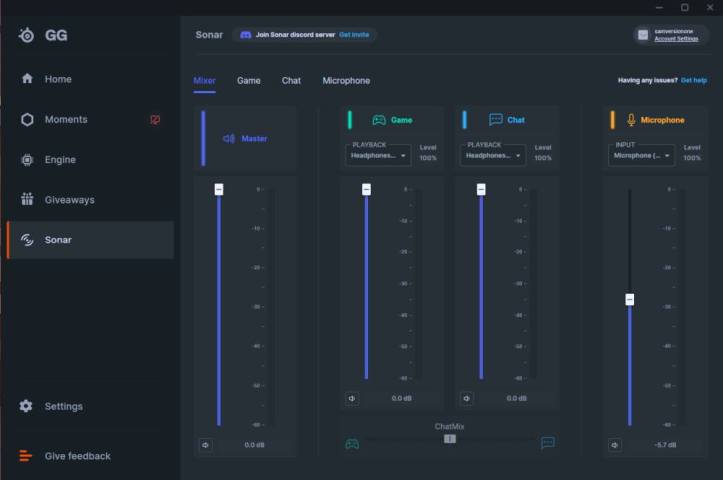
Once you enable that, you’ll see the Sonar section on the left pane that you can now click on. From here, you’ll see a Mixar tab with the Game, Chat, and Microphone settings you’ll have to mess with. For the Game and Chat playback selection, just choose the headset that you’re currently using. For Microphone, also choose your headset or whatever microphone you’re using. That’s pretty much all you have to play with on the SteelSeries GG app.
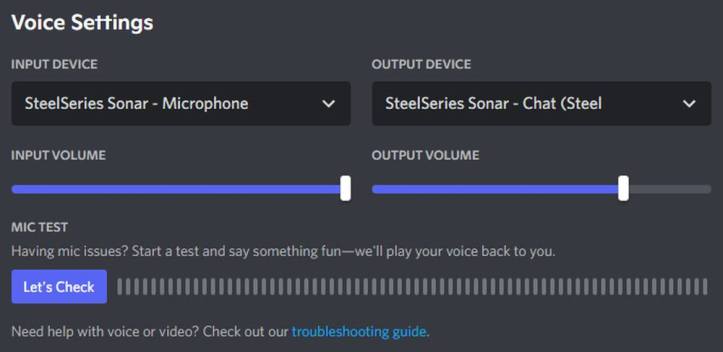
Now head on over to Discord. Under the “User Settings”, go to the section marked “Voice & Video”. Input settings should be “SteelSeries Sonar – Microphone”. The output setting would be “SteelSeries Sonar – Chat”.

Now comes OBS Studio which will require some bit of work. Go to the Scene you’re using and under the Source box, create a new source called “Discord”. Here, you want to set the Device up as “SteelSeries Sonar – Chat (SteelSeries Sonar Virtual Audio Device)”. You’ll now see it in the Audio Mixer box. You shouldn’t need to mess with the “Mic/AUX” one, but just in case, make sure it’s pointed to “Default” or “SteelSeries Sonar – Microphone”. Lastly, set your Desktop Audio device to be “Default”.

Lastly, you’ll want to set your desktop audio in the taskbar to be “SteelSeries Sonar – Gaming (SteelSeries Sonar Virtual Audio Device)” if it isn’t already.
And that’s pretty much it. Basically when you’re ready to record, just head to OBS Studio and you can just mute or lower the volume in the Discord source and/or Mic source. That leaves the game audio on and won’t mess with that while you’re free to enable or disable Discord audio from your recording, but you’ll still be able to hear your party in your headphones.
That’s my new setup since SteelSeries Sonar is out of Beta now and I’m using their new SteelSeries Arctis Nova Pro Wireless. This streamlines my setup now where I no longer need to open a separate app for this to work.
 The Gamer With Kids
To separate discord audio from game audio when recording or streaming using the SteelSeries Sonar, you can follow these steps:
Install and set up the SteelSeries Engine software: Ensure that you have the latest version of SteelSeries Engine installed on your computer. This software allows you to customize and control the audio settings of your SteelSeries Sonar headset.
Configure audio sources in your recording or streaming software: Open your preferred recording or streaming software (such as OBS Studio or XSplit) and navigate to the audio settings. You’ll want to set up multiple audio sources to separate Discord audio from game audio.
Set SteelSeries Sonar as the default audio device: In the Windows sound settings, make sure that your SteelSeries Sonar headset is set as the default audio playback device. This ensures that all audio, including game audio and Discord audio, is routed through your headset.
Route game audio to a different audio channel: In your recording or streaming software, assign the game audio to a separate audio channel or track. This allows you to control the volume and mute the game audio independently.
Route Discord audio to a different audio channel: Similarly, assign Discord audio to a separate audio channel or track in your recording or streaming software. This ensures that you can control the volume and mute the Discord audio independently.
Adjust audio levels and settings: Once the audio sources are set up in your recording or streaming software, you can adjust the volume levels for game audio and Discord audio individually. This allows you to balance the levels based on your preferences and the needs of your recording or stream.
Test and fine-tune the setup: Before starting your recording or stream, test the audio setup to ensure that you can hear game audio through your headset and that Discord audio is routed separately. Make adjustments as needed to achieve the desired audio separation.
Remember to regularly check for software and firmware updates for your SteelSeries Sonar headset and keep your recording or streaming software up to date to ensure optimal performance and compatibility.