
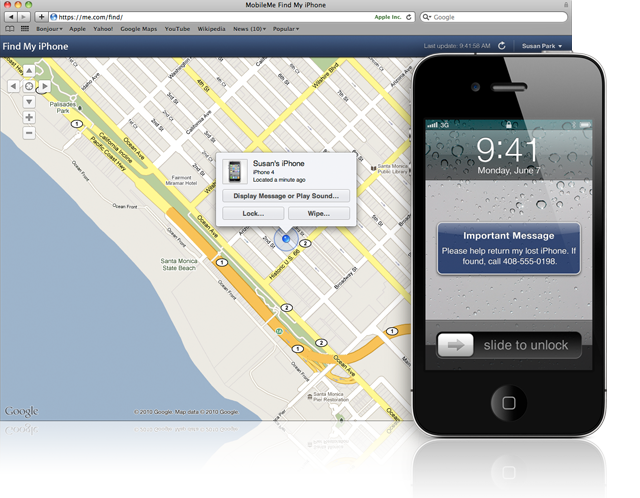
Recently, my wife lost her iPod Touch and we have still yet to recover it. The only light of hope rests with the fact that I had enabled the “Find My iPhone” feature on the device. Even though it’s an iPod Touch, you can still enable the feature to provide some useful functions in case you lose it. This tutorial will show you how to enable it on both your iPhone and iPod Touch running iOS 4.2 and higher. The only difference is that because the iPod Touch only transmits data when on a WiFi network, the “Find My iPhone” features will only activate if the lost or stolen device has access to WiFi.
Step 1
Make sure your iPhone is running iOS 4.2. If you’re creating a free account for the first time, you need an iPhone 4 or iPod Touch Gen 4.
Step 2
Tap the Settings icon and choose Mail, Contacts, Calendars.
Step 3
Tap the Add Account button and select MobileMe.
Step 4
Enter your Apple ID and password.
- If you have an iTunes Store account or have ordered from the Apple Online Store, you already have an Apple ID.
- If you don’t have an Apple ID, tap Create Free Apple ID and follow the onscreen instructions.
- If you’re already a MobileMe subscriber, enter your me.com or mac.com email address and password.
Step 5
Verify your account.
If your MobileMe account says “Not Verified,” check your email inbox for a message from Apple. Click Verify Now and sign in with your Apple ID.
If you don’t see a verification email in your inbox, select your MobileMe account and tap Resend Verification Email.
Step 6
Return to the MobileMe screen and switch on Find My iPhone.
When the Find My iPhone message appears, tap Allow.
That’s it. Now you can track you iPhone 4 where ever it is by logging into MobileMe.com. It will find the exact location of your device thanks to the GPS chip in your device. From the MobileMe site, you will also be able to remotely lock your device, send a message and alert, and remotely wipe your device as a last resort. Since the iPhone 4 has 3G data signal, it’s a bit easier track, although not guaranteed you’ll get it back.
As for the iPod Touch, this is a bit more tricky. Find My iPhone can only find it if its connected to a WiFi hotspot. That means that if you lost it and whoever found it never connects it to WiFi, you’ll basically never find it. This is what is happening with us as my wife’s lost device has yet to be connected to WiFi. I have set an automatic lock and message on it just in case the person who found it ever connects. Until then, it’s a waiting game but one that we think we’ve already lost.
Still, even though the Find My iPhone feature isn’t 100% guaranteed, it’s still an added security measure that is free and worth activating as there is always that slim chance that you’ll find it. If anything, at least you’ll be able to lock down the device or remote wipe it so that all your personal data gets erased.
For a more detailed description of the steps needed to activate Find my iPhone, visit Apple’s site here with detailed images included. I recommend that everyone who buys an iPhone 4 or iPod Touch Gen 4 enable this function the day they get their device.
[via Apple]
 The Gamer With Kids
[…] TGWK’s Tutorials – Set Up “Find My iPhone” (thegamerwithkids.com) […]